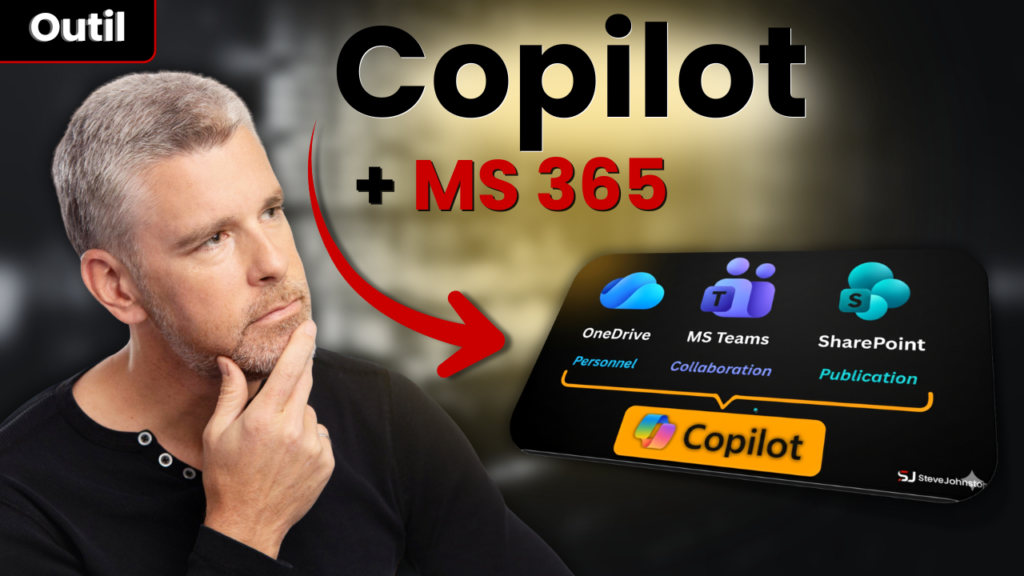
OneDrive, Teams, and SharePoint: Organize your Microsoft 365 files for Copilot
Do you use Microsoft 365 but never know where to put your files? Are you unsure whether to use OneDrive, Teams, or SharePoint? Do you find copies and duplicates everywhere, and waste a lot of time looking for the right version of a document?
If you plan to use Copilot (or already do), this confusion can become a real problem. Without a clear structure, artificial intelligence will not be able to help you effectively. It's the principle of garbage in, garbage out: if your data is poorly organized, the results will be mediocre.
In this article, you will learn the simple differences between OneDrive, Teams, and SharePoint, and most importantly, where to store your files depending on their lifecycle stage.
OneDrive, Teams, SharePoint: three tools, three distinct roles
Microsoft 365 offers three main spaces for storing and sharing files. Each has a specific role, but many companies use them interchangeably, which creates confusion.
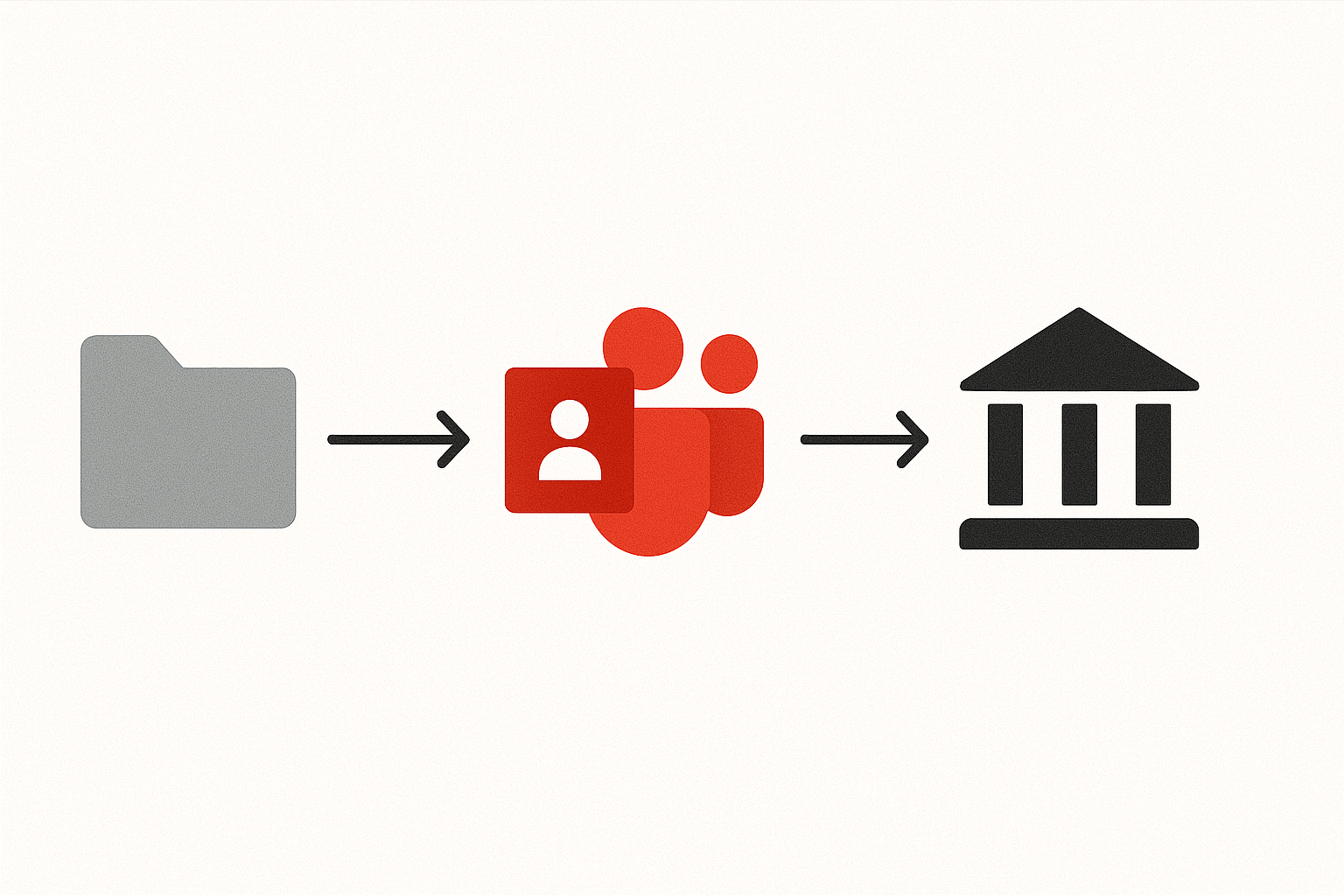
Here is the simple logic to remember:
- OneDrive = your personal space
- Teams = your collaboration space
- SharePoint = your publishing space
This sequence—staff, collaboration, publication—reflects the natural life cycle of a document within an organization.
OneDrive: your personal space for drafts
OneDrive is your space. Everything in it remains under your name. You can share files with others, but it is primarily an individual space.
When to use OneDrive:
- You are working on a draft document.
- You take personal notes
- You are using OneNote (which automatically saves to OneDrive).
- You consolidate information before sharing it with the team.
OneDrive is where you prepare your ideas and documents before making them collaborative. Once your draft is ready, you can move it to Teams to work with your colleagues.
Teams: your active collaboration tool
Teams is designed for teamwork. You can share files, hold video meetings, chat, and collaborate on documents in real time.

When to use Teams:
- You need to collaborate on a document with colleagues.
- You organize meetings and want to share notes or files
- You want to create a private chat with 2 or 3 people for a quick project.
- You already have a team in place and want to centralize your files
Important tip: When you create a new team in Teams, Microsoft automatically creates:
- A SharePoint site in the background
- A document library where your files will be hosted
- A Microsoft 365 group to manage members
All of this happens behind the scenes. You don't need to see it, but it's important to know: your Teams files are actually stored in SharePoint.
For small collaborations (2-3 people, short projects), you can also use a private chat in Teams and share a file directly. It's much simpler than creating a whole team.
SharePoint: your official publishing platform
SharePoint is where you publish official documents for the entire organization. It is not a tool for everyday collaboration—it is a library of resources accessible to everyone.

When to use SharePoint:
- You publish a final document (policy, procedure, guide)
- Human Resources provides forms or policies.
- Accounting shares expense report templates
- You want to create a central repository of resources for the company.
SharePoint works well for publishing, but Teams remains more effective for active collaboration, as you have access to files AND communication tools (video conferencing, chat, custom tabs).
The logical sequence: draft → collaboration → publication
Now that you understand the three spaces, here is the recommended workflow:
- OneDrive: Create drafts, take notes, and consolidate your ideas.
- Teams: Once you're ready, you share the document with your colleagues, collaborate, hold meetings, and improve the content together.
- SharePoint: When the document is finalized, you often convert it to PDF and publish it on SharePoint so that the entire organization can access it.
This sequence avoids duplicates, reduces confusion, and, most importantly, prepares your data so that Copilot can use it effectively.
Why it's essential for Copilot
Copilot, like any artificial intelligence, depends on the quality of your data. If your files are scattered, poorly named, duplicated, or inaccessible, Copilot will not be able to help you.
The expression garbage in, garbage out applies perfectly here. If you don't structure your files before adopting AI, you won't get miracles.
Checklist before using Copilot:
- ☐ Your files are stored in the correct locations (OneDrive / Teams / SharePoint)
- ☐ You use clear and consistent naming conventions
- ☐ You avoid duplicates and unnecessary copies.
- ☐ File access is configured correctly (Copilot can only access files that you have access to)
- ☐ Your team understands where to place files based on their lifecycle stage.
Conclusion: structure first, AI second
Before diving into artificial intelligence with Copilot, take the time to organize your Microsoft 365 files. It's an investment that pays off quickly: you save time, avoid confusion, and maximize the effectiveness of AI.
Remember this simple rule:
- OneDrive for your personal drafts
- Teams to collaborate with your colleagues
- SharePoint for publishing your official documents
Once this foundation is in place, Copilot can really help you. But without order in your data, it won't work its magic.
To go further:
- How to name your files so Copilot can find them easily (Insert: actual FR URL)
- Checklist: Prepare your Microsoft 365 before activating Copilot (Insert: actual URL)

Want to optimize your Microsoft 365 and prepare your business for AI?
Subscribe to my newsletter to receive practical tips every week: https://stevejohnston.co
Or contact me directly to discuss your situation: https://stevejohnston.co/contact
Frequently Asked Questions
Q1: Can I use OneDrive to collaborate with my team?
A: Technically, yes, you can share OneDrive files with others. But Teams is designed for active collaboration, with built-in tools (chat, video conferencing, tabs). OneDrive remains ideal for personal drafts before moving on to collaboration.
Q2: Is SharePoint required to use Teams?
A: SharePoint runs in the background when you create a Teams team. You don't need to use it directly, but your Teams files are hosted in a SharePoint library. You can access SharePoint if you want more control, but it's not required.
Q3: How can I avoid duplicate files in Microsoft 365?
A: Follow the rule: one location per type of work. Drafts = OneDrive. Collaboration = Teams. Publication = SharePoint. Don't copy files from one place to another—move them or share links.
Q4: Can Copilot access all my Microsoft 365 files?
A: Copilot only has access to files that you have access to. If a colleague has not given you permission to view a document, Copilot will not be able to use it for you. Security permissions are respected.
Q5: What should I do if my files are already in disarray?
A: Start by identifying your most important and active files. Organize them according to the OneDrive → Teams → SharePoint flow. You can archive or gradually reorganize older files. The important thing is to structure what you are currently using.
Q6: Do I need to purchase SharePoint separately?
A: No. SharePoint is included in most Microsoft 365 Enterprise licenses (Business Standard, Business Premium, E3, E5). You already have access to it if you use Teams.
